


Description
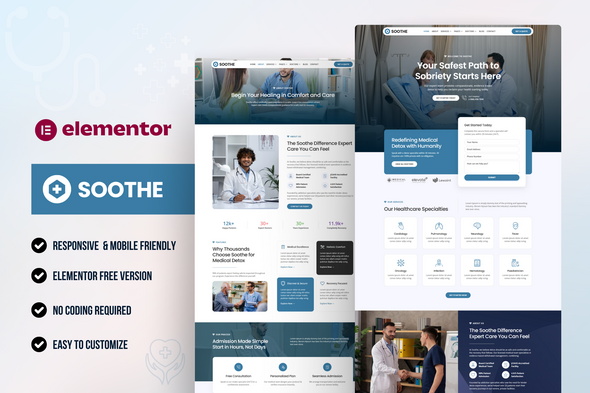
Soothe – Medical & Healthcare Elementor Template Kit
Soothe – Medical & Healthcare Elementor Template Kit
Soothe is a clean, modern, and fully responsive Elementor Template Kit tailored for medical clinics, healthcare centers, hospitals, doctors, and other health-related businesses. With a calming and professional design, Soothe helps you present your services, introduce your medical team, and allow patients to book appointments online—without writing a single line of code.
This kit is built to give healthcare providers a reliable, user-friendly website with all essential pages, making it easier for patients to find information, trust your services, and take action.
Why Choose Soothe?
- Ideal for medical, healthcare, and wellness businesses
- Modern, responsive, and patient-friendly design
- Built entirely with Elementor – no coding required
- MetForm integration for appointments, contact, and newsletter sign-ups
- Easy to customize and SEO-friendly
Included Templates:
- Home Page
- About Page
- Services Page
- Service Details Page
- Doctors Page
- Doctor Details Page
- Appointment Page
- Blog Archive
- Single Post
- Contact Page
- 404 Page
- Coming Soon Page
- Contact MetForm
- Newsletter MetForm
- Header
- Footer
Required Plugins:
- Elementor
- Jeg Elementor Kit
- MetForm
How to Use Template Kits: This is not a WordPress Theme. Template kits contain the design data for Elementor only and are installed using the envato Elements plugin for WordPress or directly through Elementor.
Elementor Template Kits use the Envato Elements plugin to install.
Detailed Guide:
https://help.market.envato.com/hc/en-us/articles/36033428836889-How-to-Upload-Install-Elementor-Template-Kits-from-Themeforest-to-WordPress
For further support, go to Elementor > Get Help in WordPress menu.
- Go to Jeg Elementor Kit menu item > Header Template
- Click Add New Header
- Add condition > All Site and click Create
- Click the pencil icon to Edit and elementor will appear
- Click gray folder icon to access My Templates tab
- Insert the header template.
- Customize and Save.
How to Import MetForm Custom Form:
- While edititing a page where a form should appear, open the Elementor navigator to locate the Metform widget.
- Click Edit Form in the builder panel.
- Select New, leave blank selected then click Edit Form button.
- Click ‘Add Template’ grey folder button.
- Click ‘My Templates’ tab.
- Choose your imported MetForm template, then click ‘Insert’.
- Once the template is loaded, click ‘Update’.








There are no reviews yet.